Understand preview mode
Preview mode gives teammates, clients and other reviewers a read-only view of a Slickplan project. Anyone with the link can browse the shared project without signing in and, when comments are enabled, leave contextual feedback using their name and email address.
A shared link can open the project on a specific page, but reviewers can still navigate to other available pages in the project.
What preview mode includes
Preview mode brings the main project materials together in one review experience. Depending on what the project contains, the top navigation can include:
- Sitemap for the website hierarchy and page relationships
- Diagrams for user flows and processes
- Content for page copy, media and SEO information
- Designs for page mockups and visual direction
An area is unavailable when the project does not contain that type of material.

Open and share preview mode
From Page Editor, you can create a preview link that opens the shared project on the page you are viewing.
- In Page Editor, select the sharing icon with the Share Preview tooltip.
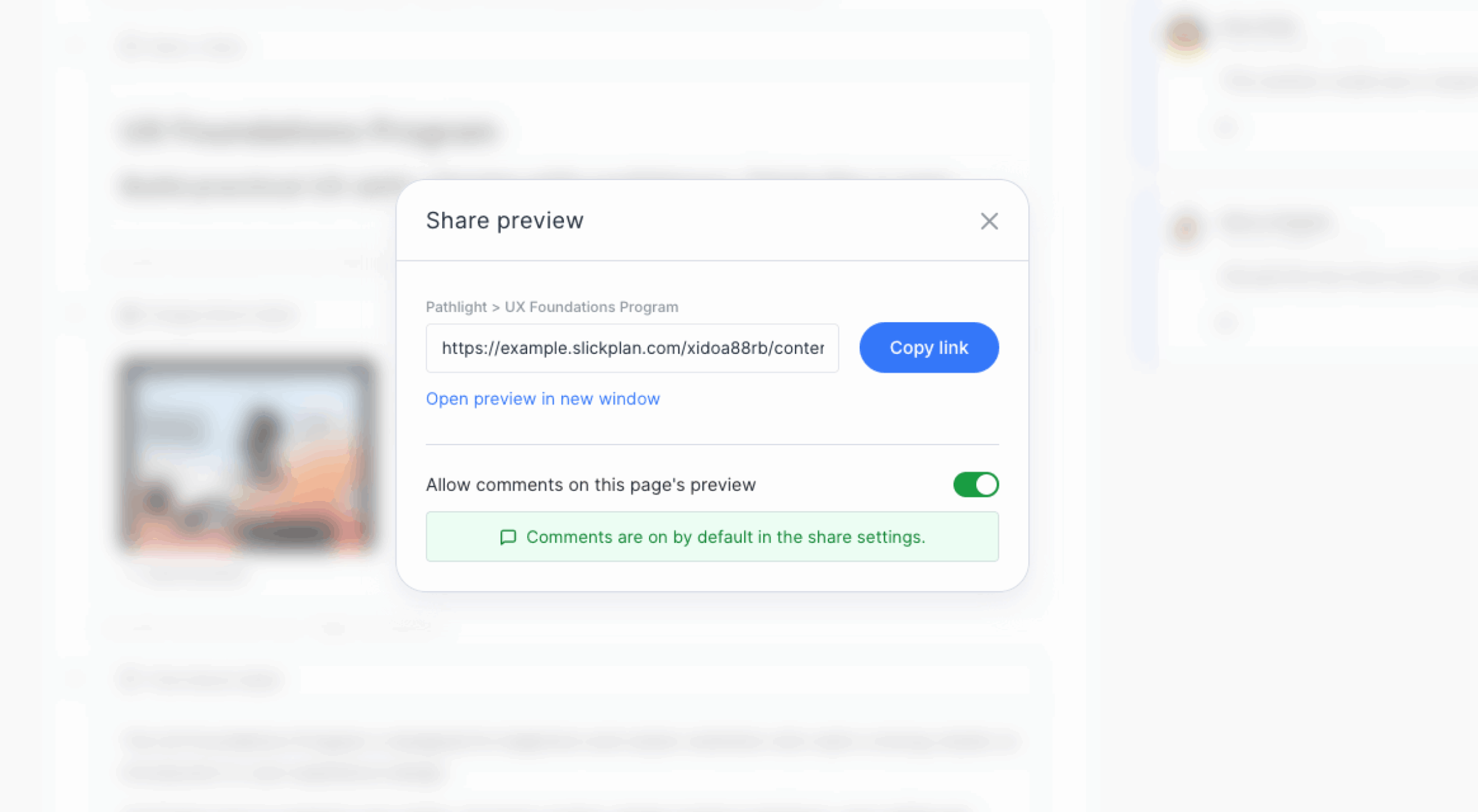
- In the Share Preview dialog, select Copy Link, or select Open Preview in New Window to open the preview directly.
- Use Allow comments on this page preview to enable or disable comments for this preview link. The message below the switch shows whether comments are on or off and how the selection relates to the default share settings.
Note: A link created from a page opens the project preview on that page. It does not restrict the reviewer to that page. Other available project pages remain accessible from the page list.
For complete sharing instructions, see Using preview mode to share projects.
Navigate a shared preview
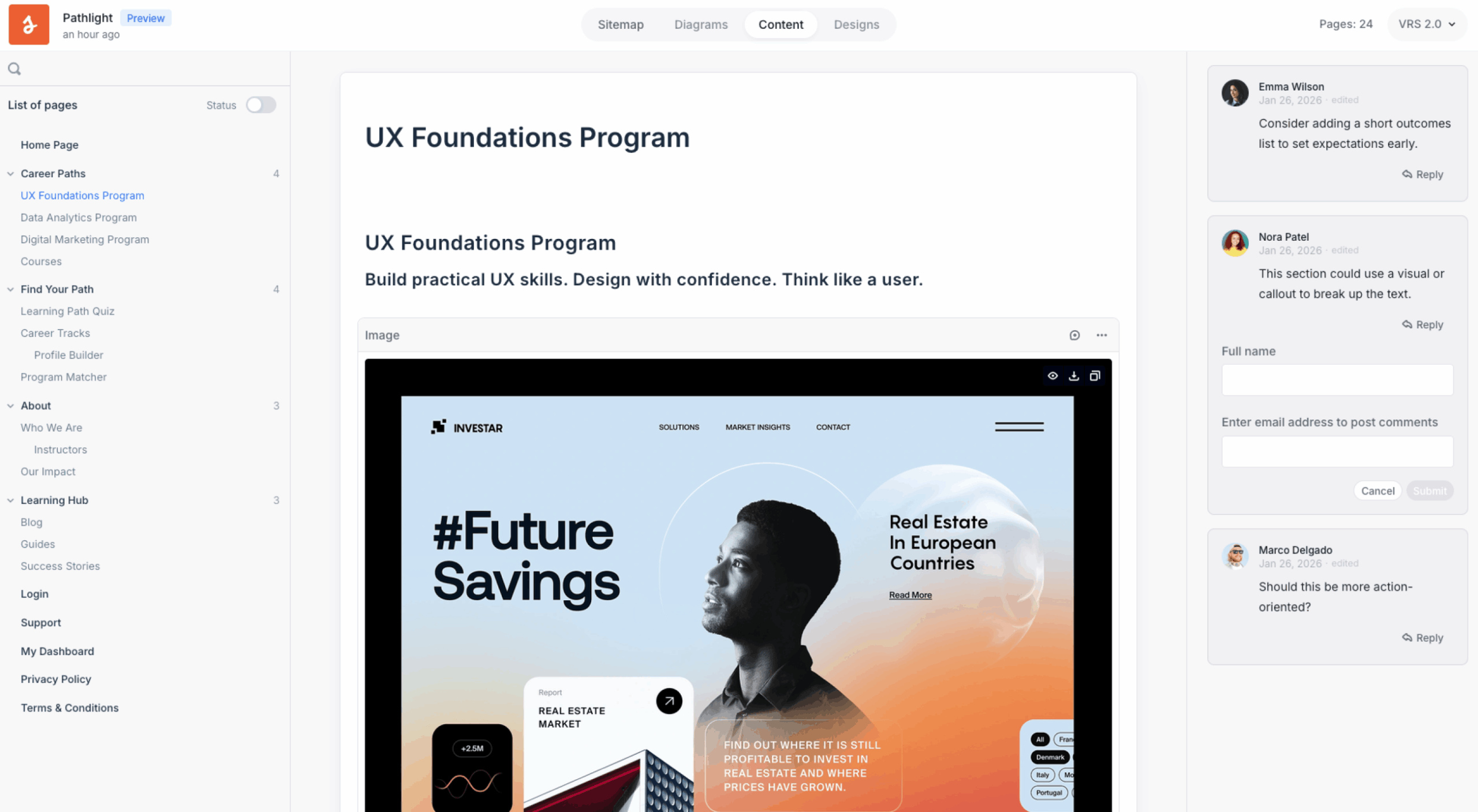
The top-left corner shows the project name with a Preview badge. Use the navigation in the center of the top bar to move between the available project areas.
In content preview, the panel on the left lists the project pages in their parent and child hierarchy. Use the search field to find a page by name. Turn on the status switch to show the colored workflow-status indicators beside the pages.
Review content and comments
In the Content area, switch between Content view and SEO view. Hover over page content to see information about the related content block.
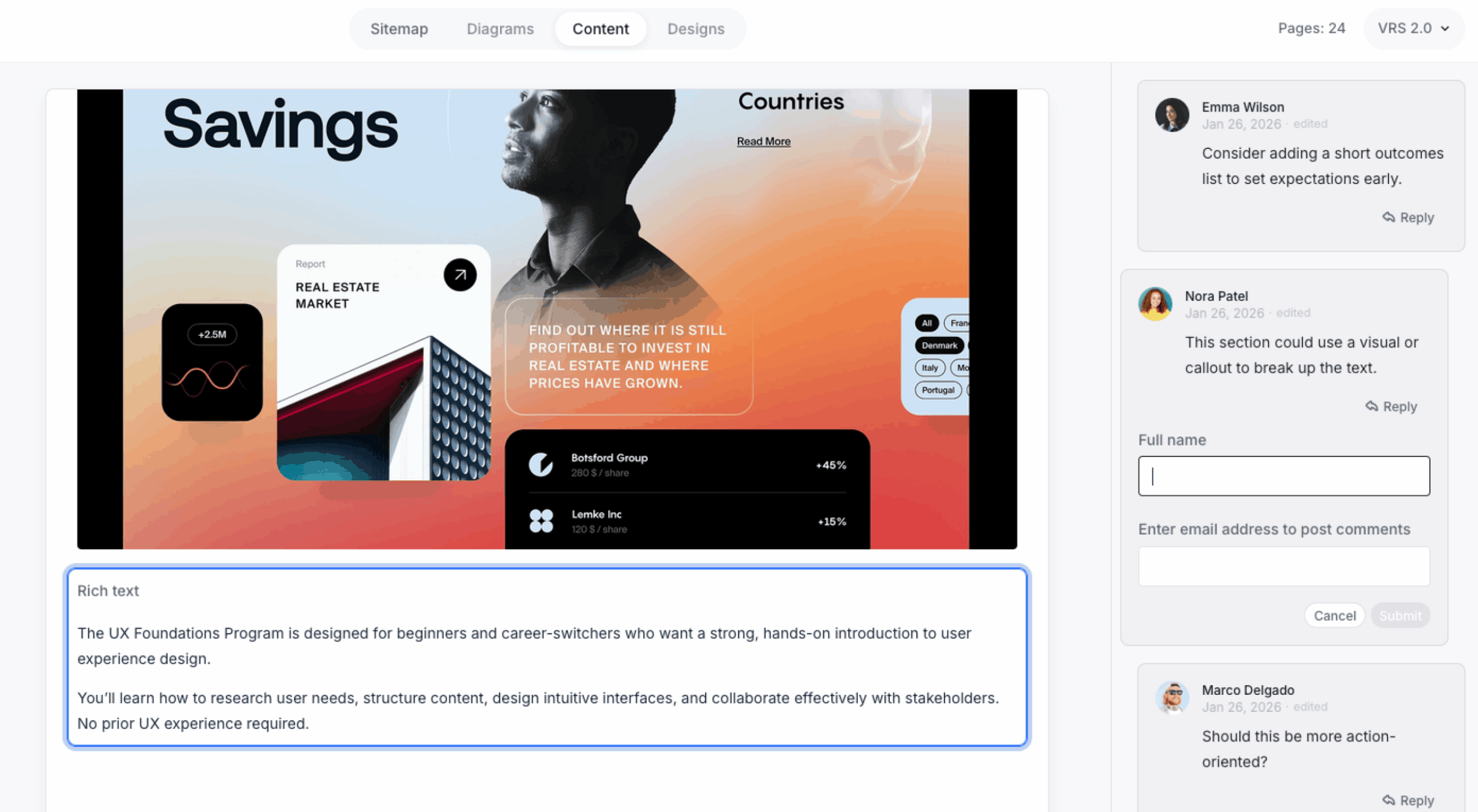
When comments are enabled, reviewers can comment on a block or highlight text to leave inline feedback. Existing comments appear on the right. Hovering over a comment highlights the content it refers to, helping reviewers understand the context.
A reviewer who is not signed in must provide a name and valid email address before posting or replying to a comment. Anonymous commenting is not available.
When to use preview mode
- Team and stakeholder reviews: Let reviewers explore project materials without giving them an editing workspace.
- Information architecture reviews: Review the sitemap hierarchy and page relationships.
- Content and design reviews: Review page content and available mockups in project context.
- Developer and production handoff: Share the project structure, content and design context before implementation. See Using preview mode for developer and production handoff for detailed guidance.