Using Content Overview
Content Overview is the default Content Planner view. It gives you one place to find pages, review project content and update page details without opening each page individually.
From another project module, select Content to open Content Overview.
Your project role and permissions determine which Content Overview actions you can use. Updating assignees, due dates, templates and statuses requires the Manage content permission. Project Managers have this permission by default; Contributor, Writer and Commentator roles do not. Custom roles depend on the permissions selected for that project member. See User roles and permissions in Slickplan for full details.
What Content Overview is
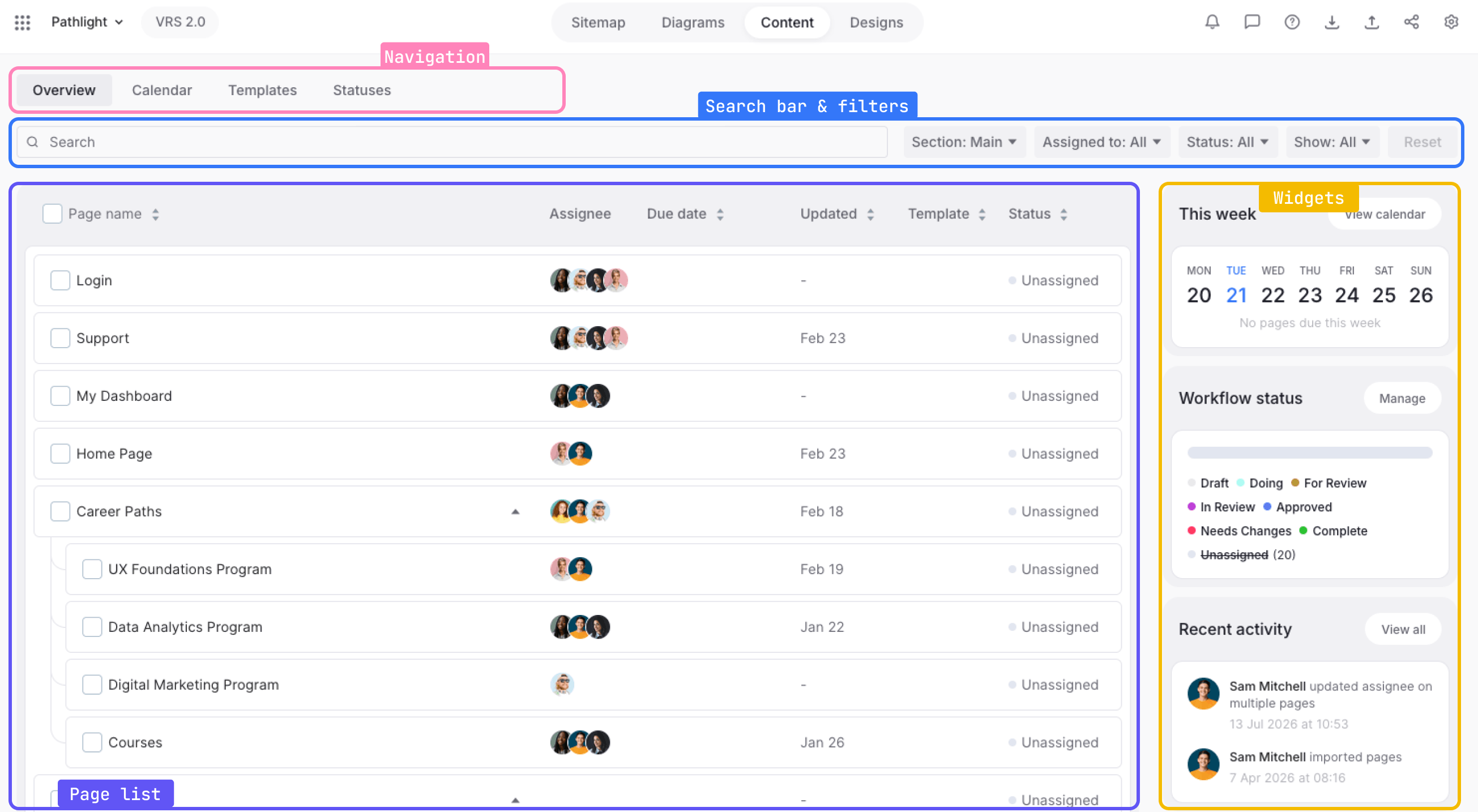
Content Overview organizes your project’s content around its sitemap. The main workspace combines a hierarchical page list with search, filters, page-management controls and project activity.
The Content Planner tabs are:
- Overview for reviewing and managing pages in a list
- Calendar for viewing scheduled pages by due date
- Templates for managing reusable content structures
- Statuses for managing page workflow statuses
Selecting a page name opens the Page Editor, where you can create and edit the page’s content. Content Overview remains the higher-level workspace for organizing pages and reviewing project progress.
Navigate the workspace
Page list and hierarchy
Pages appear as rows in a table. Child pages are indented beneath their parent pages, so you can follow the same hierarchy used in the Sitemap.
Each row can display:
- The page name and selection checkbox
- Assignee
- Due Date
- Updated
- Template
- Status
Use the checkbox beside a page name when you need to update several pages together.
Sections
The Section filter controls which part of the project appears in the page list. The default value is Section: Main.
Open the filter to choose Main sitemap or a page that contains Sections. Sections narrow the current project view. They do not create separate projects.
Find the content you need
Search for pages
Enter text in the search field to filter the page list in real time. The visible results update as you type.
Filter the page list
Use the controls beside the search field to narrow the pages shown in Content Overview:
- Section limits the list to the main sitemap or a selected Section.
- Assigned to limits the list by contributor assignment.
- Status limits the list by page workflow status.
- Show changes the page state displayed in the list.
- Language appears only when the project has more than one content language. Open it to view the available languages and switch Content Overview to the selected language version.
Each language version is managed independently. Content added or changed in one language is not reflected in another language unless you copy content between versions. For language setup, switching and copying, see Working with multilingual content.
The Show menu includes:
- All pages
- Overdue pages
- Pages due soon
- Completed pages
The Reset button appears beside the filter controls.
Review page information
Content Overview brings the main page-management details into each row so you can review the project without opening every page.
Status and assignment
The Assignee column shows the contributors assigned to a page. When a page has no assignee, move the pointer over the column to display Assign.
The Status column shows the page’s workflow status. Pages without a selected status display Unassigned. Page workflow statuses are shared between the Sitemap Builder and Content Planner. Diagram statuses are managed separately.
Due dates
The Due Date column shows the page deadline and makes time-sensitive dates easier to identify:
- Overdue pages use red text and wording such as Late: 9 Jul.
- Dates due within approximately three days use orange styling.
- Later dates use neutral styling, such as Jul 27.
For the complete due-date workflow, see Setting and managing page due dates.
Templates and last updates
The Template column shows the template assigned to the page. If no template is assigned, the row displays Apply. For template setup and organization, see Managing templates in Content Planner.
The Updated column shows when the page was last edited. This value is informational and cannot be changed from Content Overview.
Manage pages from Content Overview
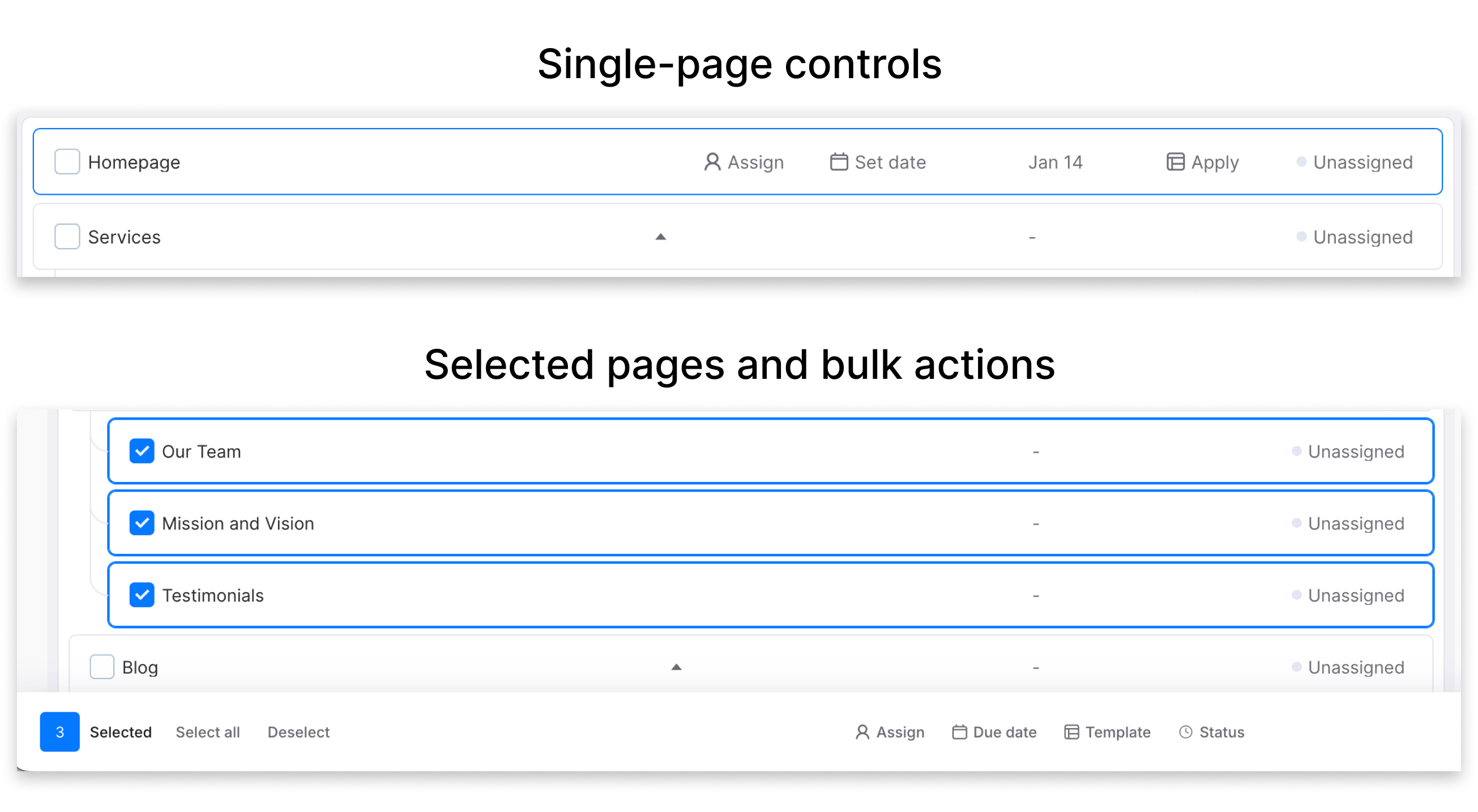
Use inline row controls
Updating assignees, due dates, templates or statuses from the table requires Manage content. See User roles and permissions in Slickplan for role and custom-permission details.
You can update common page details directly from the table:
- Select the current assignee or Assign to add or remove project contributors.
- Select Set Date or the existing due date to choose, change or clear the date.
- Select the current template or Apply to choose a project template.
- Select the current status to choose another page workflow status.
Select the page name when you need to edit the page content in the Page Editor. Editing page content depends on your role and page assignments. See Page editor: Quick start guide for the editing workflow.
Select and update multiple pages
Bulk updates to assignee, due date, template or status also require Manage content. See User roles and permissions in Slickplan for role and custom-permission details.
Select the checkboxes beside the pages you want to update. A bottom drawer opens with the number of selected pages and these controls:
- Select All
- Deselect
- Assign
- Due Date
- Template
- Status
- Done
Choose an assignee, due date, template or status to update all selected pages. The change is applied immediately.
Select Done to close the bottom drawer and clear the selection. Done does not submit pending changes.
Understand project context
The right side of Content Overview summarizes upcoming work, workflow progress and recent project activity.
This week
The This week widget shows a seven-day view of pages with due dates in the current week. Each page appears as a dot using its workflow-status color. Move the pointer over a dot to display the page name.
The widget does not show overdue or due-soon indicators. Use the Due Date column in the page table to review those states.
Select View Calendar to open the full Calendar tab. For monthly and weekly scheduling, see Using the Content Calendar.
Workflow status
The Workflow Status widget uses a segmented bar to show how page workflow statuses are distributed across the project. Each segment represents one status.
Select Manage to open workflow-status management. For status creation and configuration, see Creating and managing Content Planner statuses.
Recent activity
The Recent Activity widget shows the latest actions performed in the project. Select View all to open the fuller activity history, including the person, action, affected page, date and time.