Use the Content Calendar
The Content Calendar gives you a visual way to review and manage page due dates across your project. Use the month or week view to find scheduled pages, adjust dates and open pages for editing.
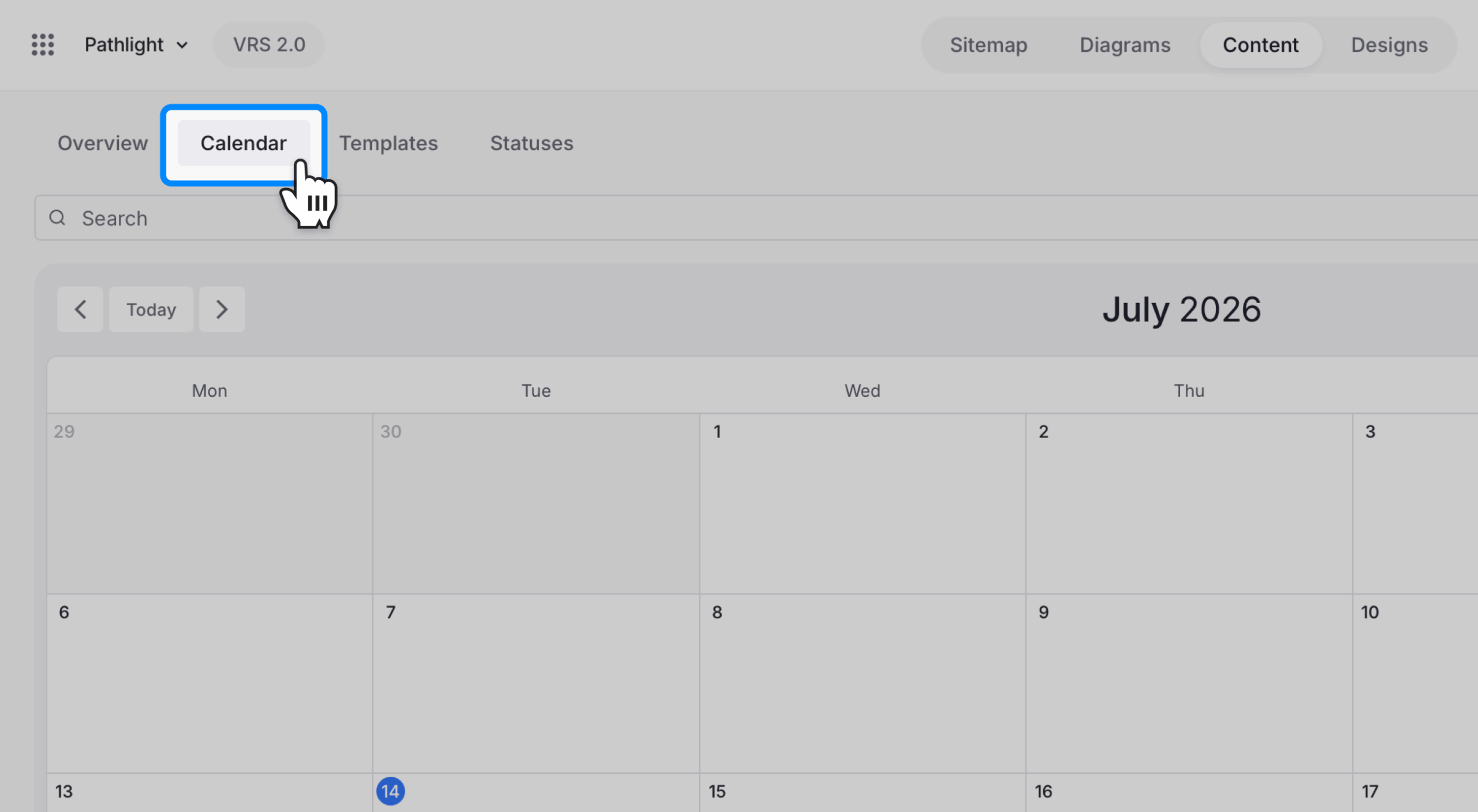
Open the Content Calendar
- Switch to Content Planner.
- Select Calendar above the page list.
Only pages with assigned due dates appear in the calendar.
Navigate and review the calendar
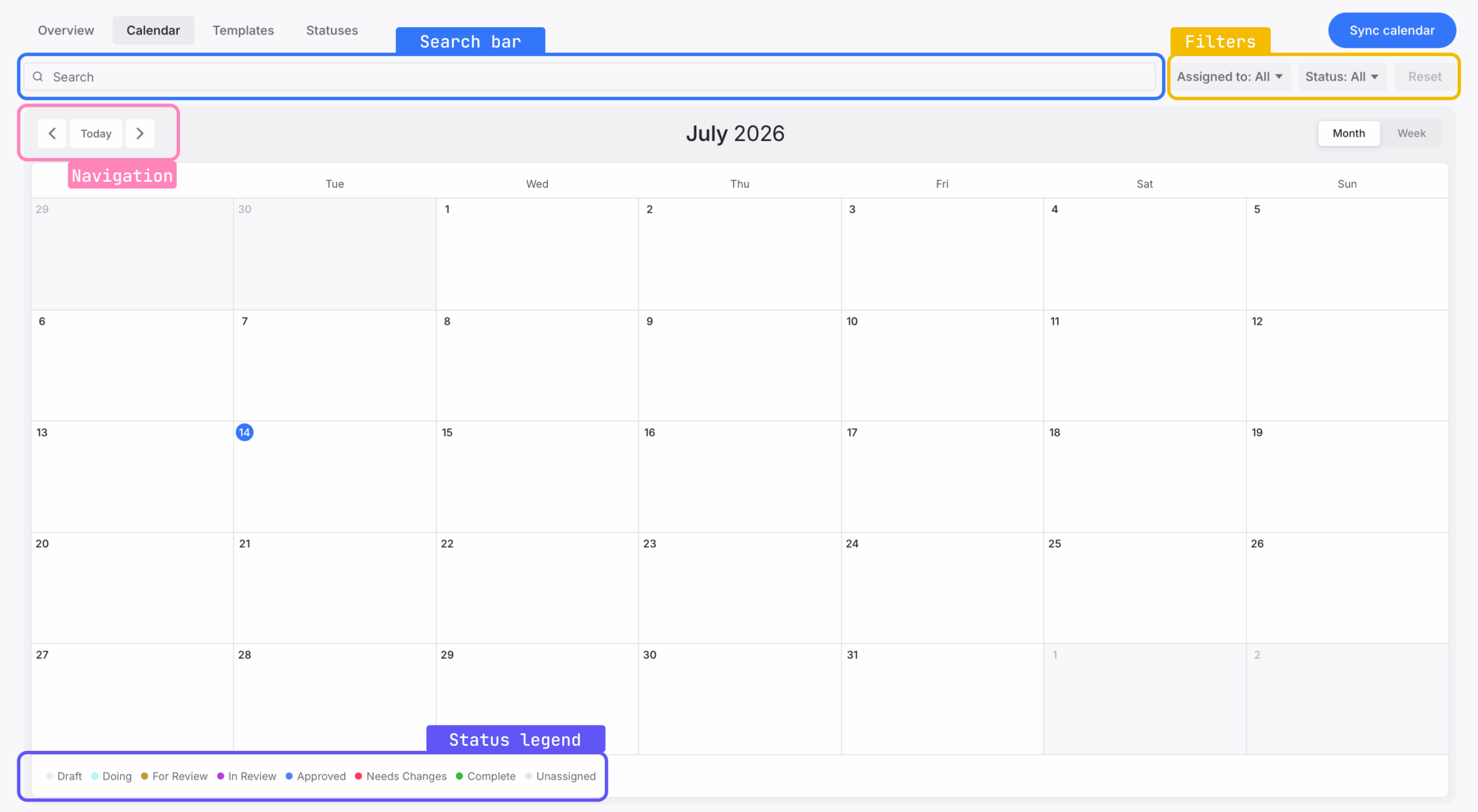
Use the controls at the top of the calendar to change the date range and view:
- Use the previous and next arrows to move between calendar periods.
- Select Today to return to the current date.
- Select Month or Week to change the calendar view.
The calendar displays days from Monday through Sunday. Each scheduled page appears as a horizontal item on its due date. Item colors correspond to the page’s workflow status, and the legend at the bottom of the calendar shows the statuses used in the project.
Because workflow colors depend on the project’s configuration, use the status names and legend rather than relying on a particular color.
Find scheduled pages
Use the search and filter controls to narrow the calendar:
- Enter a page name in the search field.
- Use Assigned to to show pages assigned to a particular contributor.
- Use Status to show pages with selected workflow statuses.
- Select Reset to clear the search and applied filters.
Update a page from the calendar
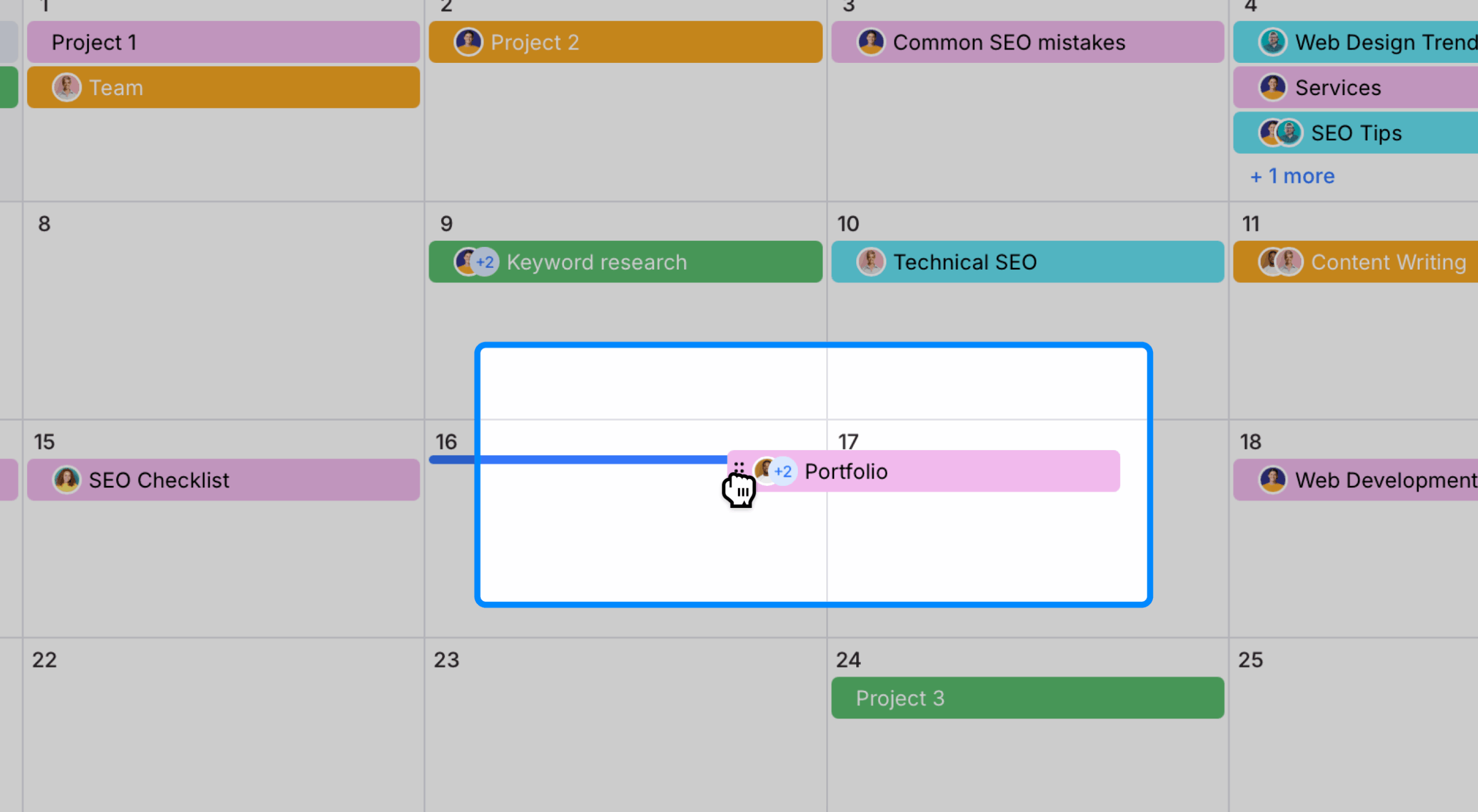
Move a page to another date
- Hover over the scheduled page.
- Drag the six-dot handle to another date.
- Release the page on the new date.
The page’s due date updates automatically.
Use the quick action panel
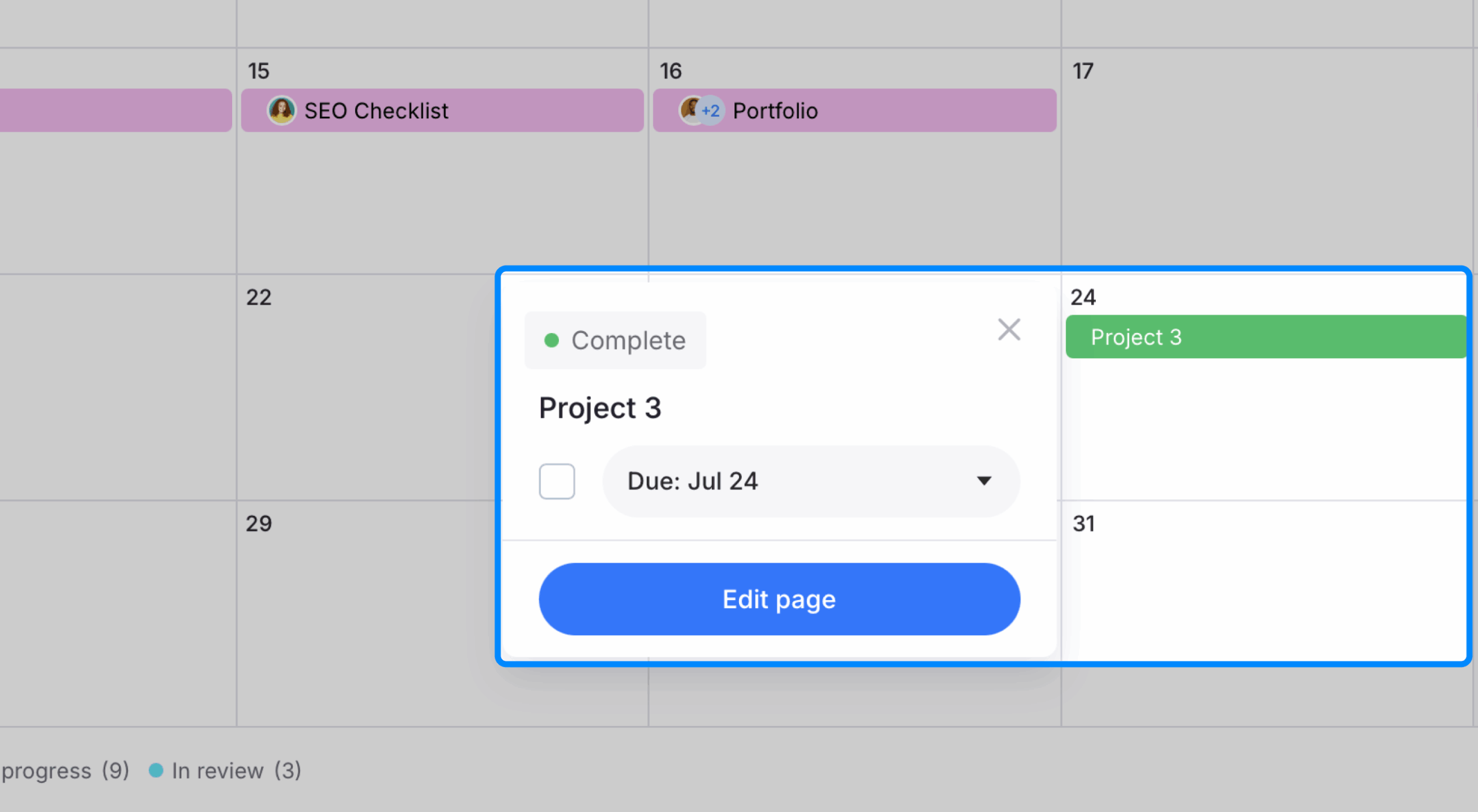
Select a scheduled page to open its quick action panel. From the panel, you can:
- Change the page’s workflow status.
- Update its due date.
- Mark the page as Done.
- Select Edit page to open the full Page Editor.
Add due dates to an external calendar
- Select Sync Calendar.
- Wait for the iCal link copied confirmation.
- Add the copied link to a compatible external calendar application, such as Google Calendar or Apple Calendar.
The external calendar can then display the due dates from your Slickplan project.