Add Content Planner due dates to an external calendar
The Content Calendar can generate an iCal link that lets you view Slickplan page due dates in a compatible external calendar. This is a one-way subscription, so manage due dates in Slickplan.
This guide uses Google Calendar as the example.
Before you begin
- Content Planner is available on Pro plans and higher.
- Project owners, administrators and project managers can copy the calendar link.
- Use Google Calendar in a computer browser. Google does not support adding a calendar by URL from its mobile apps.
Copy your Content calendar link
- Open your project and switch to Content.
- Select Calendar above the page list.
- Select Sync Calendar in the upper-right corner.
- Wait for the iCal link copied confirmation.
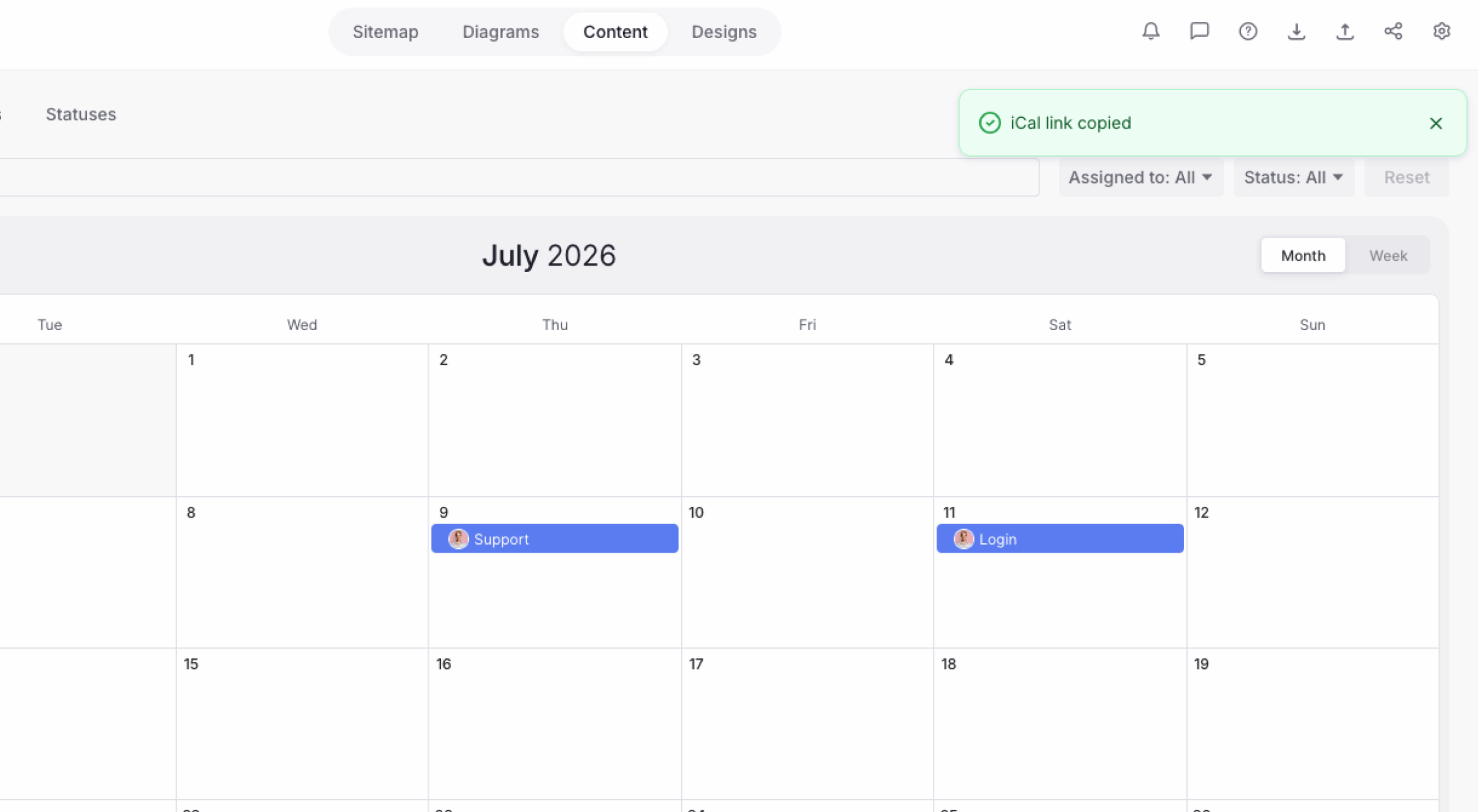
The project calendar link is copied to your clipboard.
Add the link to Google Calendar
Follow Google’s official instructions for adding a calendar from a URL. In Google Calendar, use the From URL option and paste the link copied from Slickplan.
After Google adds the subscription, the calendar appears under Other calendars.
How updates work
The calendar connection is one-way. Make all due-date changes in Slickplan rather than Google Calendar.
Google Calendar checks subscribed calendars for updates, but those changes may not appear immediately. Google does not publish a guaranteed refresh interval in its current Help Center, so allow time for changes made in Slickplan to appear in Google Calendar.