Build a custom template
Templates let you create reusable page structures in the Content Planner. Add and configure content blocks to give contributors a consistent format and clear instructions for each page.
Create a new template
- In the Content Planner, open Templates.
- Select New template.
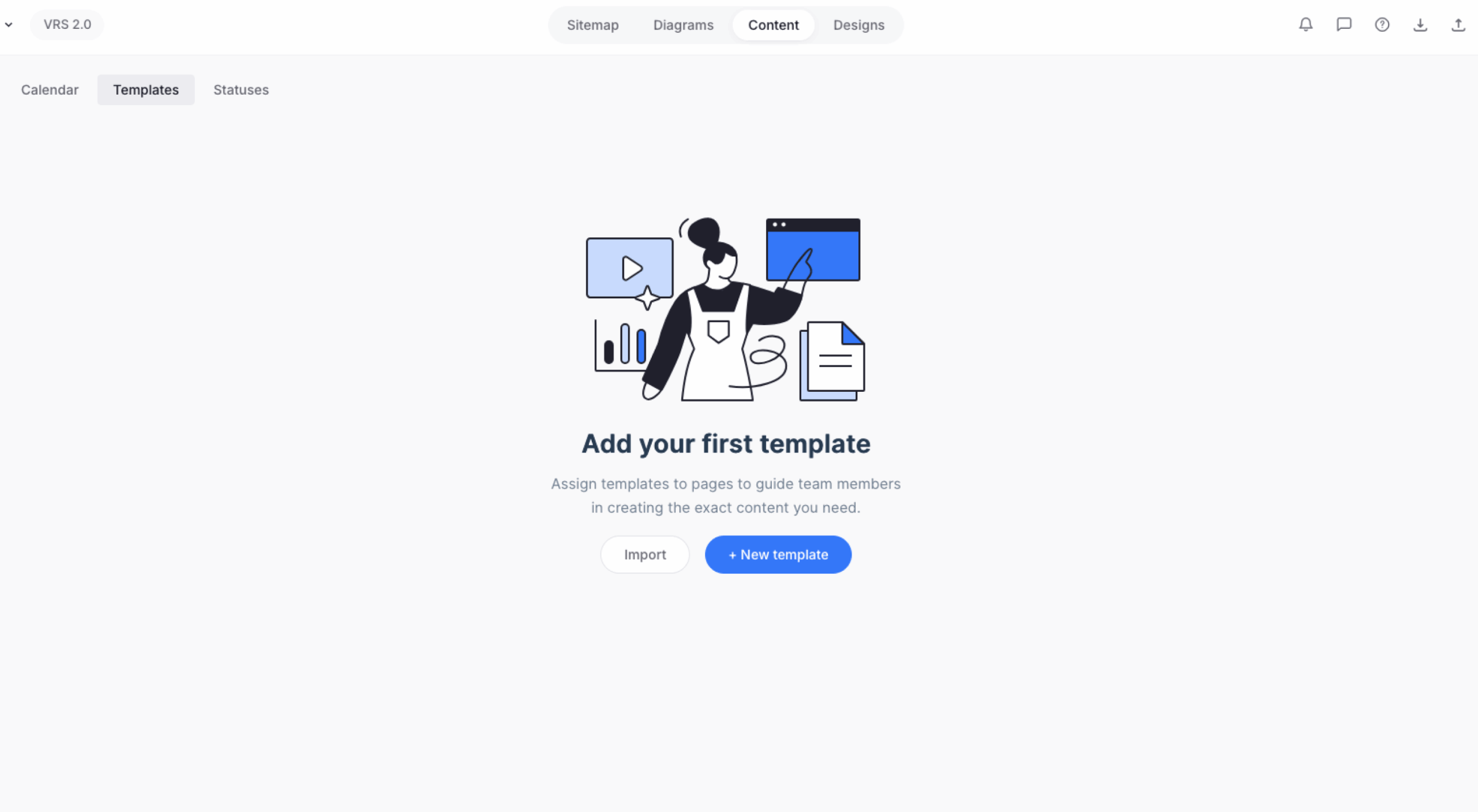
- Enter a template name, then select Add.
- Slickplan creates the template and opens it in the Template Editor.
Add content blocks
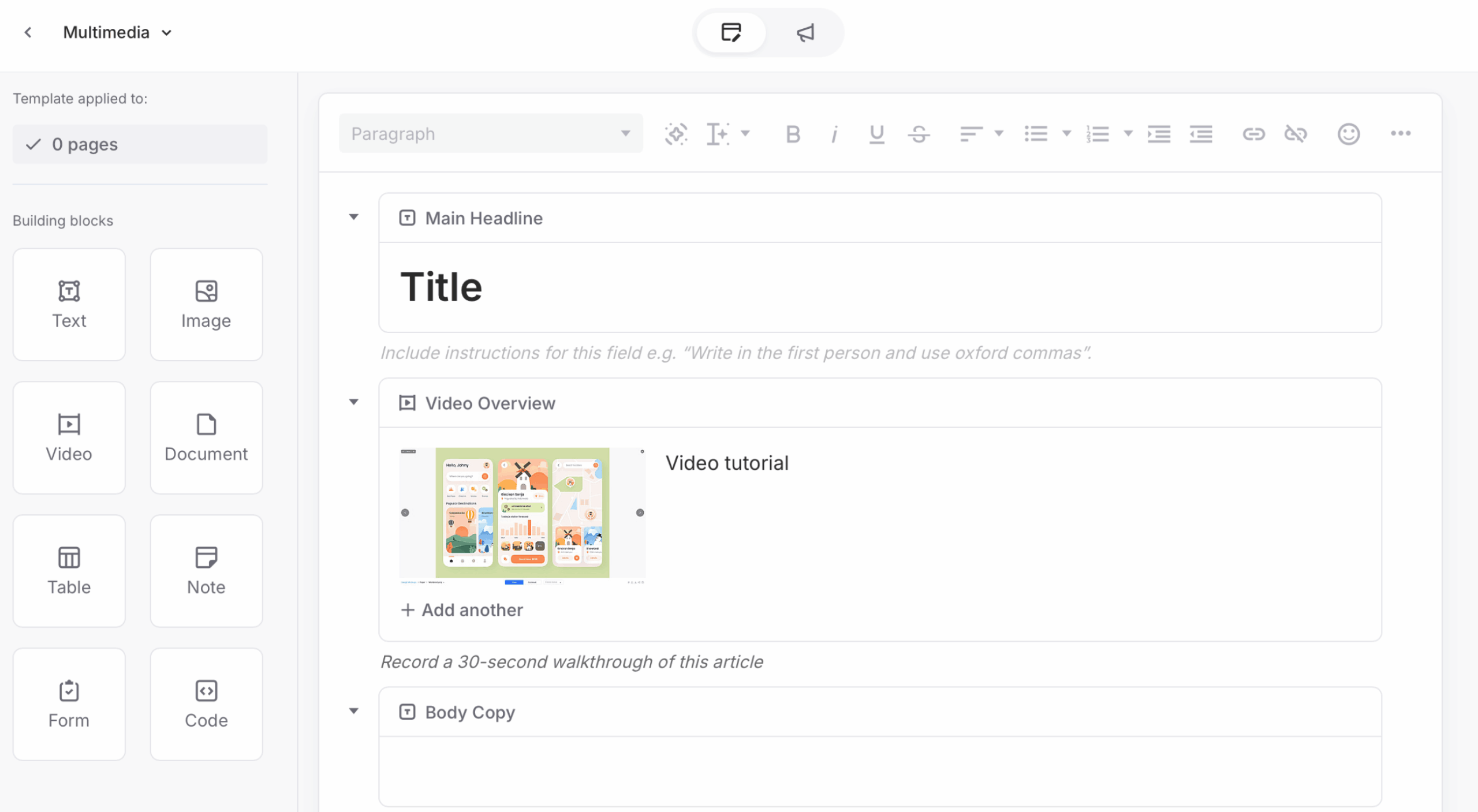
Drag content blocks from the left sidebar into the canvas to build the template structure. Arrange the blocks in the order contributors should complete them.
You can configure each block for the type of content you need. For example:
- Add a Text block, select Plain, enable the HTML wrapper and choose H1. Enter Main Headline as the label.
- Add a Video block, turn off multiple uploads and limit the block to one video. Enter Video Overview as the label and add instructions such as “Record a 30-second walkthrough of this article.”
- Add a Rich Text block, enter Body Copy as the label and add instructions such as “Do not exceed 2,000 words.”
Add guidance and instructions
Each content block includes Label and Custom instructions fields. Use them to tell contributors what to add and how to format it.
You can use these fields to:
- Set word, file or upload limits.
- Provide formatting guidance.
- Add sample content or placeholders.
Add a Note block when you need to provide guidance that does not belong to a specific content block.
Configure SEO settings
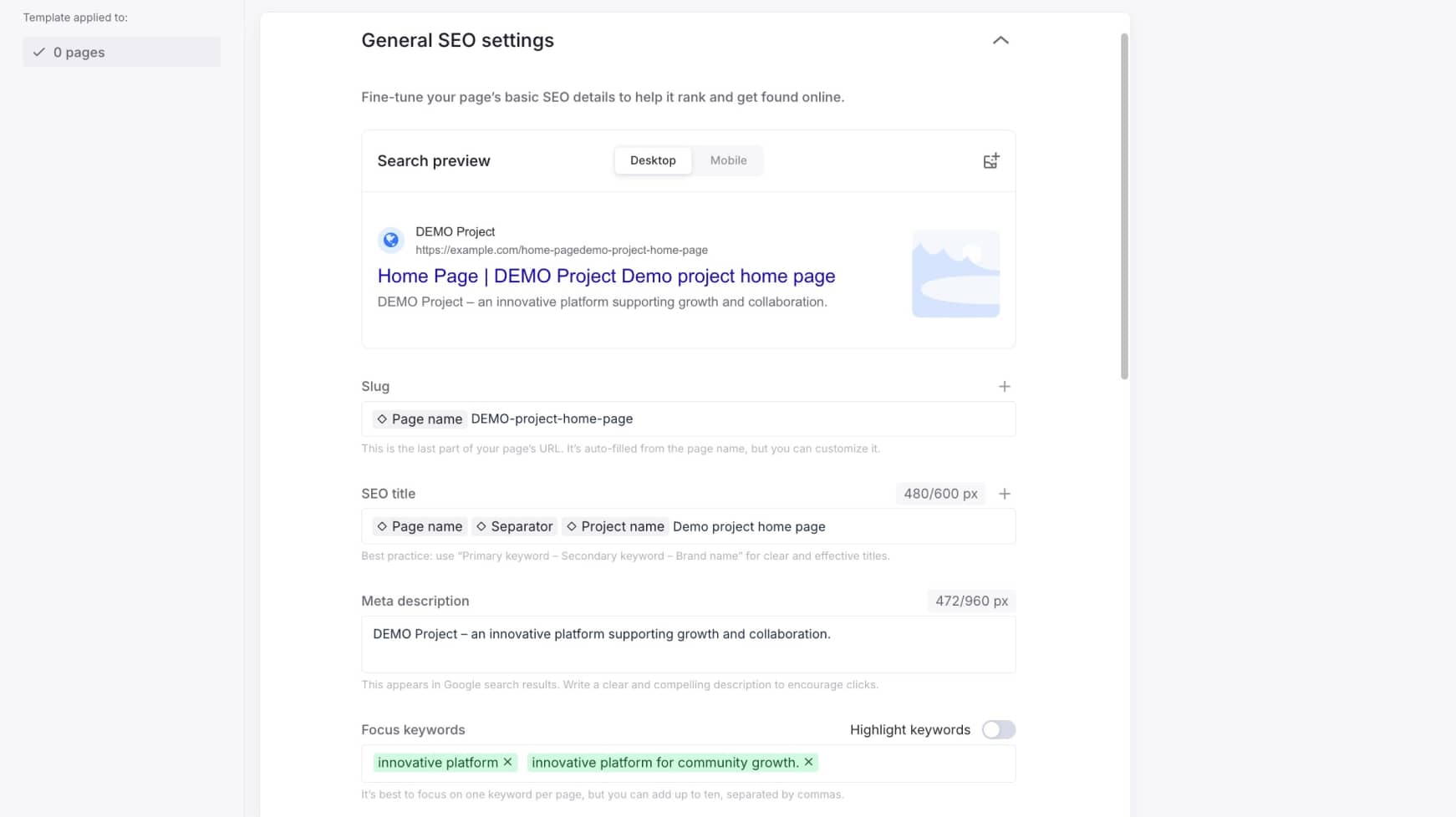
Templates include SEO settings that let you prepare common values in advance. Use variables such as the page name, project name, separator or brand name to create reusable patterns for contributors.
Save and track the template
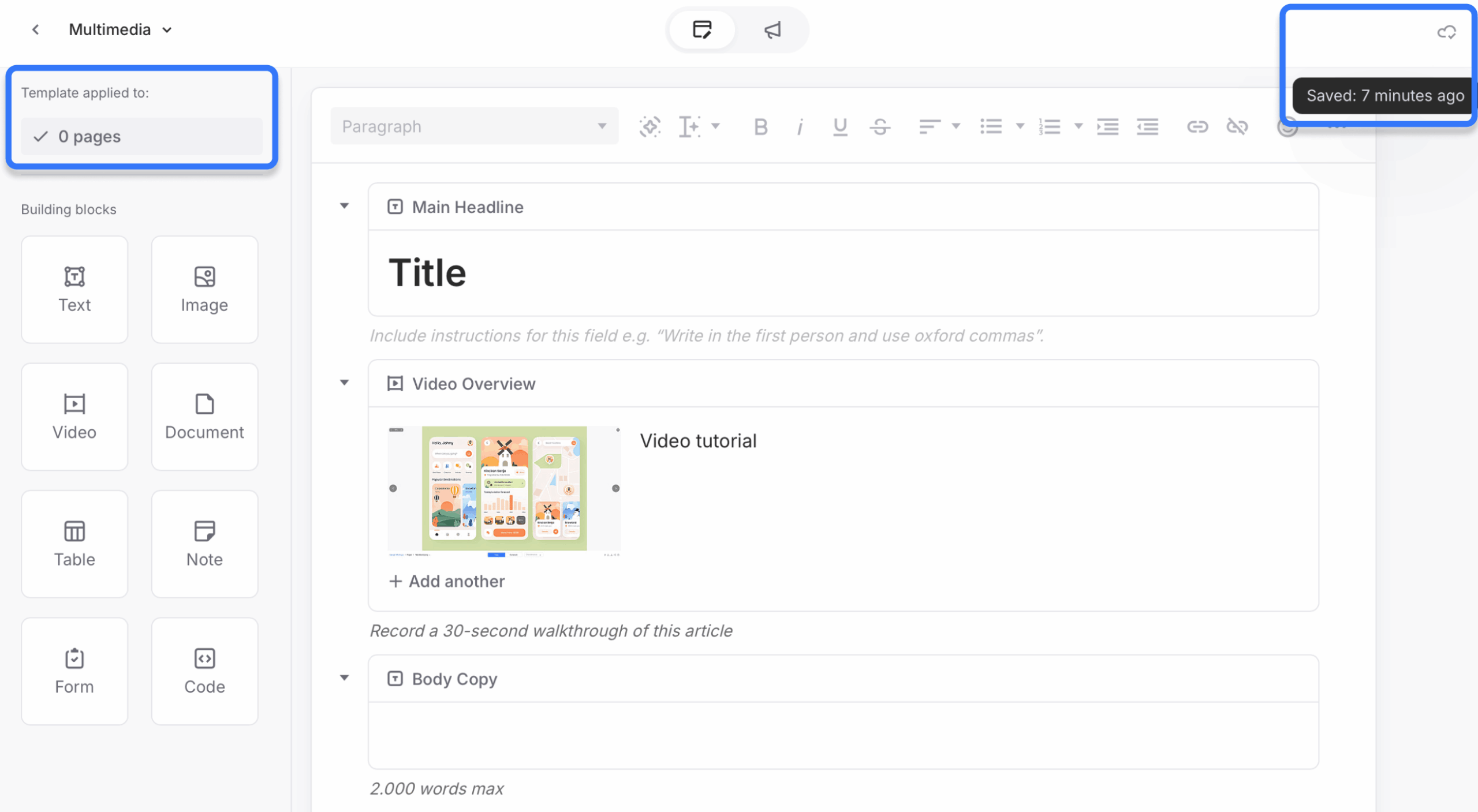
Slickplan saves template changes automatically. Check the cloud checkmark in the upper-right corner of the Template Editor to confirm that your latest changes are saved.
The top of the editor also shows how many pages use the template. Editing or deleting blocks in a template that is already assigned may affect those pages, so review the changes carefully.
The template is now saved and ready to reuse across the project.