AI writing assistant
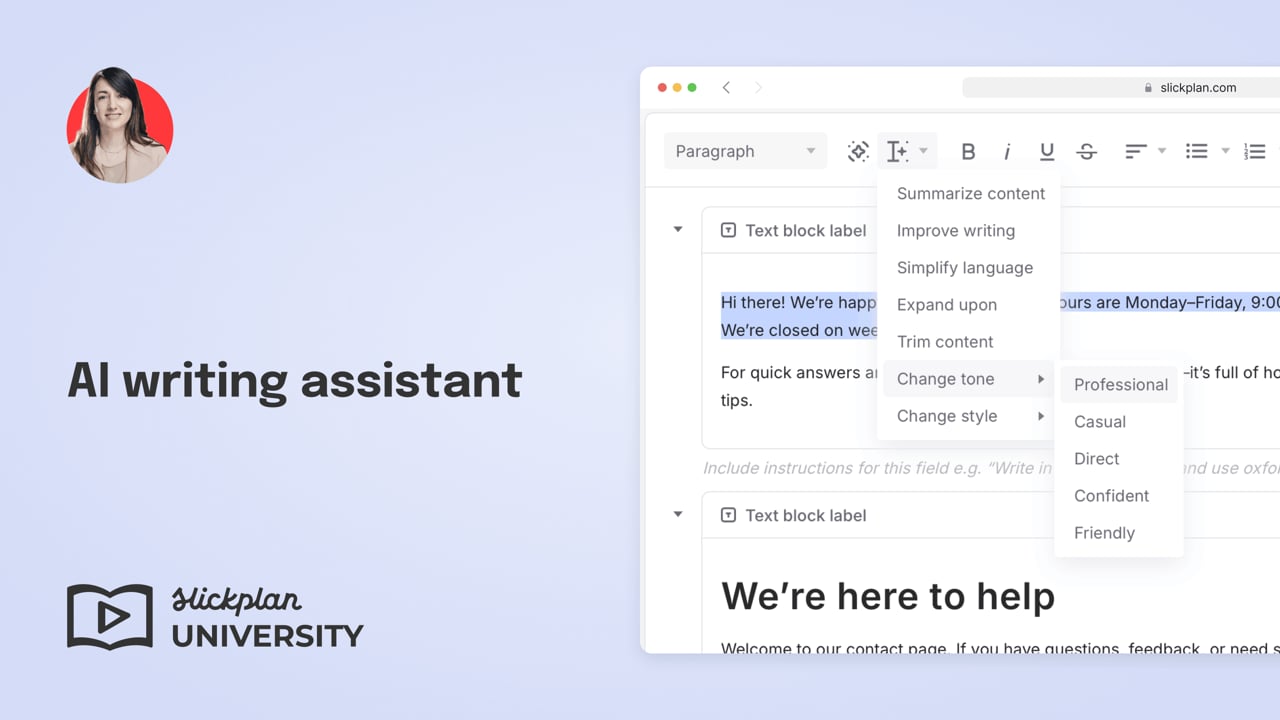
The AI writing assistant helps you draft, improve, and refine text while working inside the page editor. It’s designed to support writers during content creation without interrupting structured workflows or team collaboration.
You can use it to:
- Generate new copy from a prompt
- Improve or rewrite selected text
- Adjust tone or style
- Refine internal notes and writing instructions
The assistant works directly inside supported text-based blocks, so you can stay focused on the page you’re building.
Where you can use the AI writing assistant
The AI writing assistant is available in the following block types:
- Rich text blocks
- Plain text blocks
- Notes blocks
It isn’t available in tables, images, or other non-text blocks.
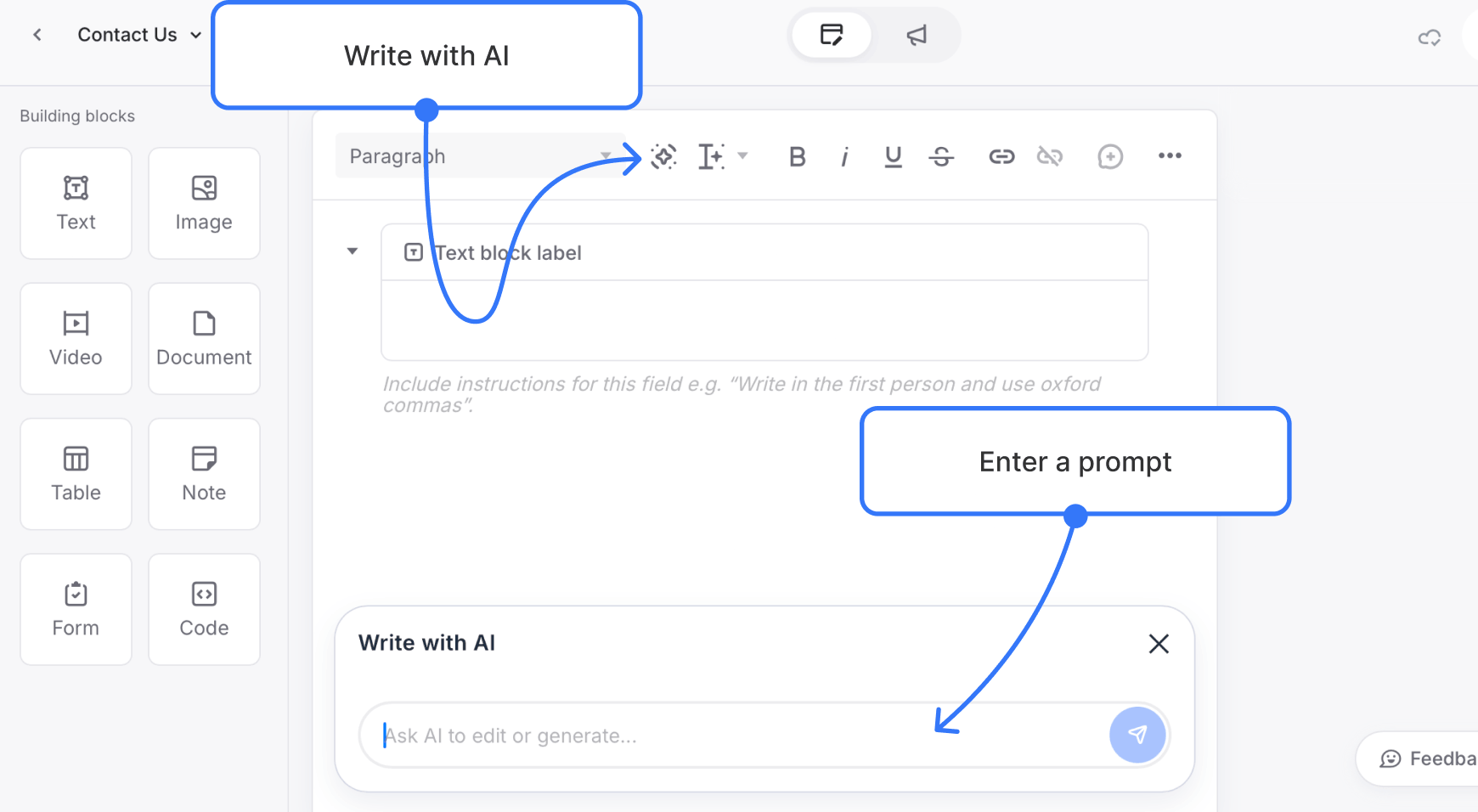
Writing new content with AI
Use Write with AI when you want to generate new text from scratch.
How it works
- Place your cursor inside a supported text block
- Click the AI icon in the editing toolbar
- Enter a prompt describing what you want to write
- Review the generated preview
- Insert the text or try again
The generated content appears in a preview first, giving you full control before anything is added to the page.
Editing existing text with AI
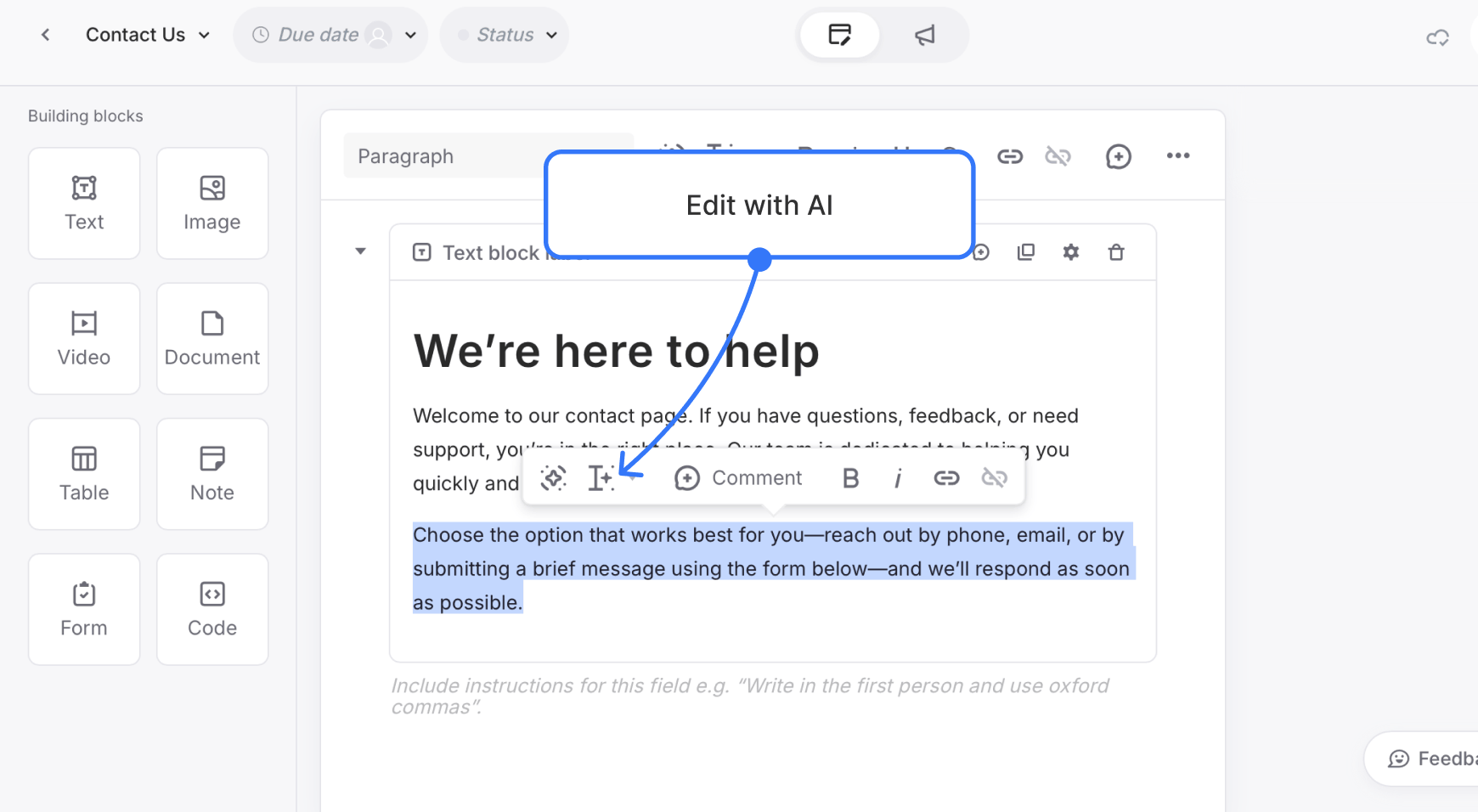
Use Edit with AI when you want to refine or transform existing text.
This option requires you to select text first.
Available editing actions
- Summarize
- Improve writing
- Simplify language
- Expand upon
- Trim content
You can also adjust tone or style using additional options.
Change tone
- Professional
- Casual
- Direct
- Confident
- Friendly
Change style
- Business
- Legal
- Journalism
- Medical
- Poetic
When you choose an action, the assistant generates a revised version of the selected text for review.
Reviewing and inserting AI suggestions
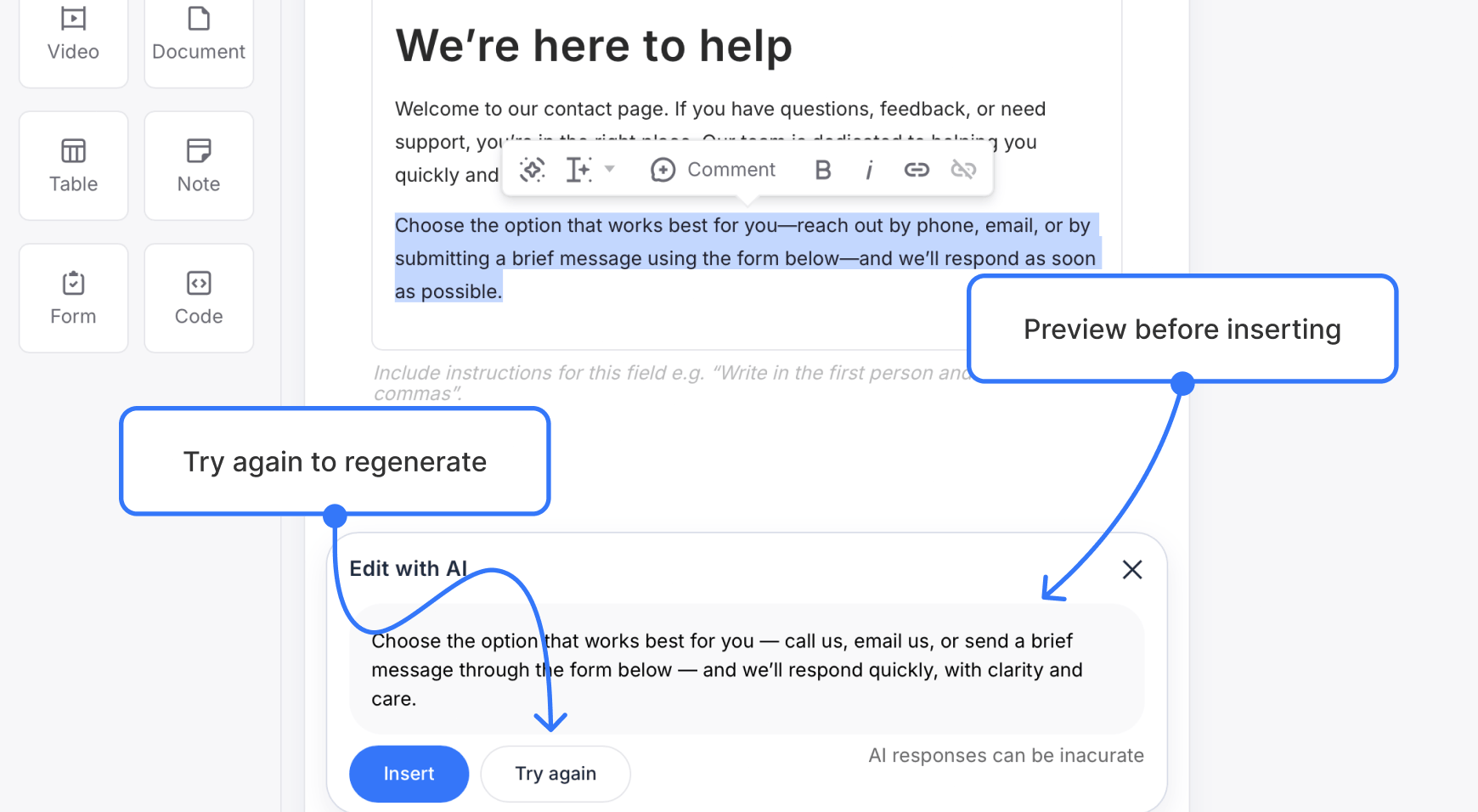
After the assistant generates content, you’ll see a preview along with two options:
- Insert – applies the change
- Try again – generates a new variation
For edits, inserting replaces the selected text. For new content, inserting adds the text at your cursor location.
Using AI in notes blocks
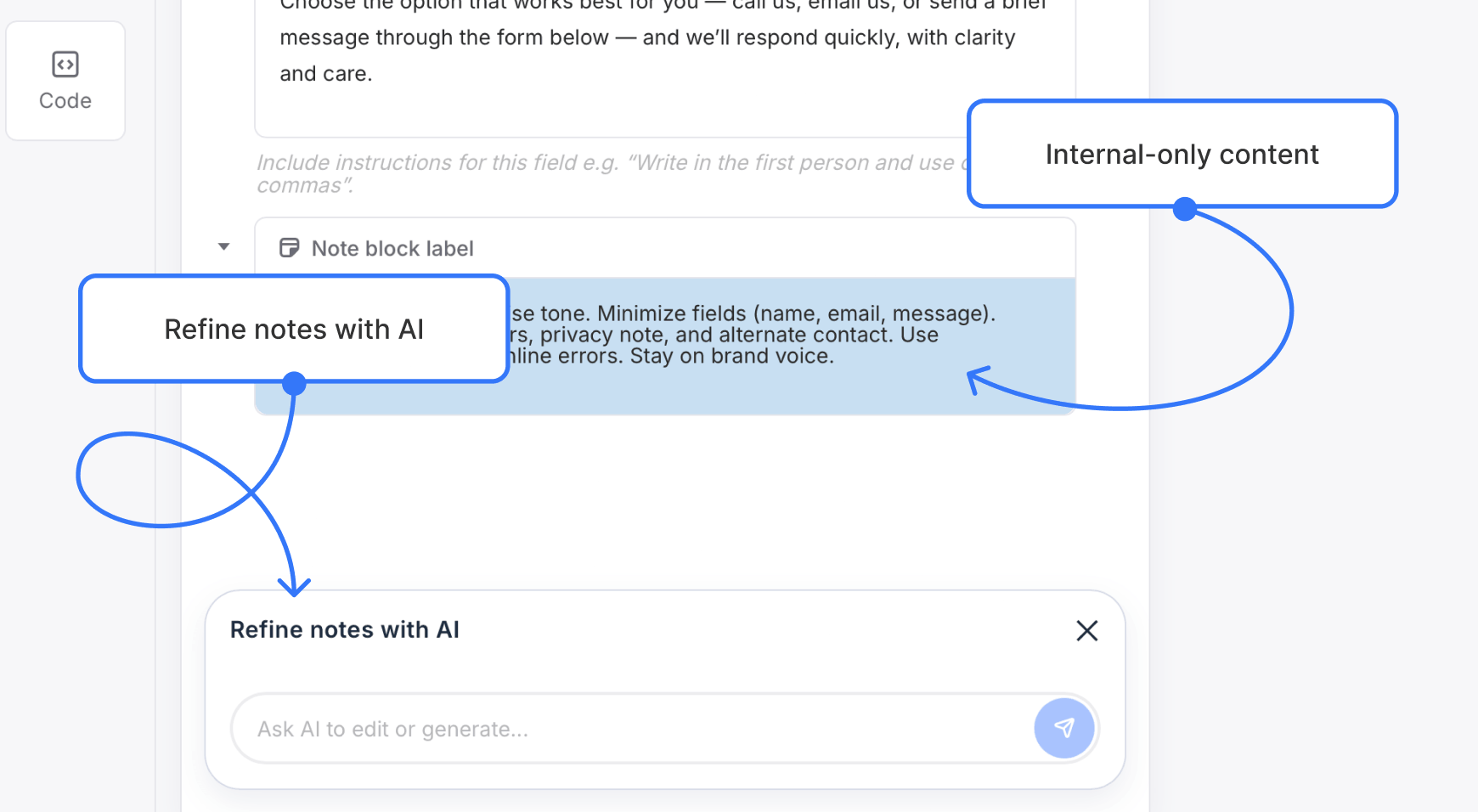
Notes blocks are designed for internal guidance, instructions, and writing direction. They aren’t included in exported content.
When working in a notes block, the assistant is optimized for refining guidance text. The AI modal reflects this by using a different label.
Undoing changes and version history
AI-generated changes are never applied automatically.
After inserting content, you can undo the change using your browser’s standard undo shortcut (Cmd/Ctrl + Z). You can also restore earlier versions using page version history.
This ensures you can safely experiment without losing work.
Usage notes and limitations
- AI responses may be inaccurate and should always be reviewed
- The assistant supports text-based blocks only
- Usage limits may apply depending on your plan
The AI writing assistant is meant to support your writing process, not replace review, collaboration, or approval workflows.